Ad

Tuesday, July 22, 2025

Regex Find and Replace Visual Studio

 Visual Studio Find and Replace RegEx

Find: 

\(\(\s*([a-zA-Z_][a-zA-Z0-9_]*)\s*\)\s*ref\s+([a-zA-Z_][a-zA-Z0-9_]*)\)

Replace:

$2 

Find: 

if\s*\(\s*DisposableWrapper\.op_Inequality\(\s*\(DisposableWrapper\)\s*([a-zA-Z_][a-zA-Z0-9_]*)\s*,\s*\(DisposableWrapper\)\s*null\s*\)\s*\)


Replace:

if ($1 != null)

Find: 

if\s*\(\s*!ObjectId\.op_Equality\(\s*([a-zA-Z_][a-zA-Z0-9_]*)\s*,\s*ObjectId\.Null\s*\)\s*\) 

Replace:

if ($1 != ObjectId.Null)

Find:

if\s*\(\s*DisposableWrapper\.op_Equality\(\s*\(DisposableWrapper\)\s*([a-zA-Z_][a-zA-Z0-9_]*)\s*,\s*\(DisposableWrapper\)\s*null\s*\)\s*\)

Replace:

if ($1 == null) 


Monday, March 10, 2025

WPF Strings to Search for Localization

I used this list of string values to help find places where localization strings need to be used instead of hard coded values.

Title="

Header="

Text="

Content="

ToolTip="

Friday, October 18, 2024

Units - International Feet and US Survey Feet

 Bizarro world remains for the software company. When you add features should you expect everyone to change their behavior? What do you do with legacy drawings? Should the software company actually make sure their own features work with the new feature? 

If you are Autodesk that is a resounding NO! Ignore the new feature and wonder why users are complaining. 

In this case the software providers have provided support for "Feet" (which was the only option for decades) and then added an option for "US Survey Feet". Unfortunately, if you export to IFC Civil 3D doesn't read the drawing units. The feature defaults to "International Feet" instead of "US Survey Feet". 


You can see that in line 13 of the output files (note yours might be different). That the conversion factor from feet to meters is set to "Internation Feet" instead of using the appropriate factor. 

To fix this you can modify the text files with the desired value of conversion. In this case the desired value should be 39.37 inches per meter or 0.3048006096012192


Then when you import the file into another drawing, as long as it reads the factor, it should import in at the desired location instead of being scaled incorrectly. 


I haven't tested Civil 3D 2025, but Map 3D also has issues recognizing "US Survey Feet" for most of the commands in Civil 3D 2024 and prior drawings. These were reported to Autodesk, but like most bugs I don't think they cared to fix them. As bugs to be fixed are bugs to be ignored.

The help file indicates it supports US Survey Feet, but I'm not seeing that in practice on the export. 


Saturday, September 21, 2024

Digicert Click-to-sign tool setup

 I forgot to remember how to set up DigiCert Click-to-sign tool setup. So here is the dialog box filled out with the working values. 


The pkcs11properties.cfg is a small file. 

name=signingmanager 

library="C:\Program Files\DigiCert\DigiCert Keylocker Tools\smpkcs11.dll"

slotListIndex=0

 Go here to the KeyLocker workflow:

Then go through the Get Started workflow.


Set the paths to the to Keylocker tools and the SignTool.exe, or one can do it from the System Environment dialog box in Windows 11.

set PATH=%path%;"C:\Program Files\DigiCert\DigiCert Keylocker Tools"

set PATH=%path%;"C:\Program Files (x86)\Windows Kits\10\bin\10.0.22621.0\x64"

set PATH=%path%;"C:\Program Files\Java\jdk-23\bin"

The Keylocker Windows Clients Installer:


Once complete: 


Here is the command line stuff: 
If you use the command line options, it appears one has to restart the computer for the changes to be accepted.


Wednesday, September 18, 2024

PropWPF Code Snippet

 Steps to add a code snippet in Visual Studio for use as adding a WPF property. 

Go to Tools, Code Snippets Manager

Select the desired language


Click on the Visual C# folder to see the existing snippets. 

Copy the propfull.snippet to the My Code Snippets location and rename it to the desired shortcut. In my case propwpf.snippet.

Modify the snippet to the desired format: 


In this case this is the snippet text: 

<?xml version="1.0" encoding="utf-8" ?>

<CodeSnippets  xmlns="http://schemas.microsoft.com/VisualStudio/2005/CodeSnippet">

<CodeSnippet Format="1.0.0">

<Header>

<Title>propWpf</Title>

<Shortcut>propWpf</Shortcut>

<Description>Code snippet for property and backing field</Description>

<Author>Microsoft Corporation</Author>

<SnippetTypes>

<SnippetType>Expansion</SnippetType>

</SnippetTypes>

</Header>

<Snippet>

<Declarations>

<Literal>

<ID>type</ID>

<ToolTip>Property type</ToolTip>

<Default>int</Default>

</Literal>

<Literal>

<ID>property</ID>

<ToolTip>Property name</ToolTip>

<Default>MyProperty</Default>

</Literal>

<Literal>

<ID>field</ID>

<ToolTip>The variable backing this property</ToolTip>

<Default>myVar</Default>

</Literal>

</Declarations>

<Code Language="csharp"><![CDATA[private $type$ $field$;


public $type$ $property$

{

get { return $field$;}

set { SetProperty(ref $field$, value);}

}

$end$]]>

</Code>

</Snippet>

</CodeSnippet>

</CodeSnippets>


Sunday, April 07, 2024

Trimble Access Development

  • Ask for access from Trimble and install Trimble Installation Manager and include the API
  • Add Android path to the "PATH" system environment. The path should be checked to make sure it is correct. This will make it so the code will compile. It might be a setting I missed, but if Visual Studio indicates it can't find something, then add the path to the file locations. 
    C:\Microsoft\AndroidNDK64\android-ndk-r16b\toolchains\arm-linux-androideabi-4.9\prebuilt\windows-x86_64\bin\
  • Modify Visual Studio for Android and Windows development for c++ if it doesn't already exists. 
  • If the install is on a server, install Wireless LAN from the Server Manager program, You know this is required if starting Trimble Access emulator says it can't find the "WLANAPI.dll" file. 
    https://www.youtube.com/watch?v=Mq6xhtiZeKM&t
  • If you make a mistake, make sure to clean and then rebuild. Otherwise, it will not copy all of the files properly. 
  • If there are copy file errors, then change the post build event to use "ByPass" instead of "unrestricted"
    powershell -executionpolicy ByPass -file "$(ProjectDir)CreateTimXml.ps1" -outfile "$(OutDir)$(TargetName).timxml" -lib "$(TargetFileName)" $(TimXmlProperties)

    • You might need to restart your computer and/or restart Visual Studio to get the projects to build and possibly clean the project and then build the code. Stuff appears to get cached which prevents things from working correctly using c++.

    Tuesday, April 02, 2024

    Trimble Access - X

     The Trimble Access SDK really sets one up for success in making you fully aware that there are other languages spoken than English. They set up all of their sample code to to have XCodes which are used to translate any string to the appropriate language.

    Unfortunately, the SDK documents have not been updated and some of the sample code solutions do not contain the required *XCodes.h files. This post explains how to create them. 

    The first step is to find the location of the TransitApp.exe folder. In my case it is in this folder: 

    "C:\Program Files\Trimble\Trimble Survey Core API v23.10\Tools\TransItApp.exe"

    In the same folder is a file called "ApiLanguageTool.exe". The "ApiLanguageTool.exe" allows you to run a command line prompt to process the file. I'm not a big fan of command line tools, so I probably don't know all of the tricks. Here are my steps.

    • Go to the start menu and type cmd and select the Command 
    • Type cd and paste the path of the exe location. This makes it so the command line can find the program.

    • You can then type ApiLanguageTool.exe ? to see what options are available. 

    • This will let you know the format the program is looking for. 
    • Then paste in the information. In this case, I'm creating the XCodes for the HowToSample solution. 


    • I didn't include the .h, but I should have to the XCodes name. The program will then process the tdb file and place it in the desired location. In my case, I needed to go back and make the change.
    It does appear one should be able to run the "TransitApp.exe" directly and get a UI, but on my computer it was failing.

    Tuesday, March 26, 2024

    AutoCAD 2025 - .NET 8 Build Folder

     AutoCAD 2025 was released, at least I think it was. I'm too lazy to find out. 

    AutoCAD 2025 has migrated from .NET Framework 4.7.2 to .NET 8 (previously named .NET Core). 

    With this change you might need to set the BaseIntermediateOutputPath in order to use a common code base between AutoCAD years. I've found that you can create a "Directory.Build.props" file and put it in the root folder of your solution. Then within the file add: 

    <Project>
     <PropertyGroup>
       <Deterministic>true</Deterministic>
       <BaseIntermediateOutputPath Condition="'$(BaseIntermediateOutputPath)'=='' ">obj\$(MSBuildProjectFile)\</BaseIntermediateOutputPath>
     </PropertyGroup>
    </Project>

    This will move the project build from the "obj" folder to a "obj/ProjectFileName" folder. This will cause the build for each project to go into their own folder and prevent projects from mingling and causing duplicate info that prevents the build from building. 

     Here is the help topic: https://learn.microsoft.com/en-us/visualstudio/msbuild/customize-by-directory?view=vs-2019


    The app being built in the above example may be found here: 

    https://apps.autodesk.com/CIV3D/en/Detail/Index?id=6447637305413252324

    Tuesday, December 20, 2022

    Open Databases By Core Console

    I've added code to the https://github.com/C3DReminders/DFWBIUG_C3D_Data_Shortcuts_2020 repository to demonstrate how to open drawings without using the UI and extracting information from them using the AutoCAD core console. This method allows for the opening of drawings via multithreading. This sample code creates a simple text file, but the concepts could be expanded. 

    The name of the command is "OpenDbsByCoreConsole" and it is located in the OpenDatabasesCoreConsoleCommand class. 

    Note that some of the code was retrieved from the "Autodesk Batch Save Utility (Standalone)" by looking at the decompiled dll code. 

    Monday, December 19, 2022

    Open Databases By Side Loading

    I've added code to the https://github.com/C3DReminders/DFWBIUG_C3D_Data_Shortcuts_2020 repository to demonstrate how to open drawings without using the UI and extracting information from them. This sample code creates a simple text file, but the concepts could be expanded. 

    The name of the command is "OpenDbsBySideLoading" and it is located in the OpenDatabasesCommand class. 


    Sunday, December 18, 2022

    Corridor Surface Point Codes

     I've added some code to the https://github.com/C3DReminders/DFWBIUG_C3D_Data_Shortcuts_2020 repository that demonstrates how to get which point codes are being used by a corridor surface. 

    This is useful when you want to assign property set information to a corridor feature line when it is extracted from a corridor for use in another program. 

    In the code sample, the name of the command is "CorrSurfPointCodes" and it is in the "CorridorFeatureLinesCommand" class. 

    Friday, November 25, 2022

    Property Set Units

    It appears one has to add a "Property Data Format" to the drawing in Style Manager. Once you do that, use the Format column on the Property Set Definition tab to select the desired format and then the unit drop-down will then become available with the set units available for the unit type specified in the Property Data Formats. I changed Standard to Area and then the area options was then available.


    Sunday, October 16, 2022

    Image Transient Graphics

     I uploaded an attempt to draw an image using transient graphics to github.
    https://github.com/C3DReminders/DFWBIUG_C3D_Data_Shortcuts_2020

    It doesn't work well, but it's a start.

    Thursday, October 06, 2022

    Sample Reports = Alignments

     Civil 3D comes with sample code. It is a great place to start when writing code. For Civil 3D 2023, the code is located here: C:\ProgramData\Autodesk\C3D 2023\enu\Data\Reports\Net\Source

    "C:\Program Files\Autodesk\AutoCAD 2023\C3D\Sample\Civil 3D API\DotNet\C3DDotNetSamples.sln"

    Sunday, August 28, 2022

    AutoCAD Fields: Layout Name Conversion

     One can use Diesel expressions to convert data in AutoCAD. In this case, I want to convert the layout tab name to a fuller name. So if I have CIV I want the field to show "Civil" and if the layout tab name is "INF" it should be "Infrastructure". 

    $(if,$(eq,$(getvar, "ctab"),"CIV"),"Civil",$(if,$(eq,$(getvar, "ctab"),"INF"),"Infrastructure","Error"))

    The help topic for Diesel expressions may be found here: 

    https://knowledge.autodesk.com/support/autocad-lt/learn-explore/caas/CloudHelp/cloudhelp/2019/ENU/AutoCAD-LT/files/GUID-F94A885A-4DA2-432B-AC1A-EB49CC6C1C72-htm.html 

    Note that the link will probably die in 3 to 4 years. 

    Here is a video showing it in action: https://youtu.be/zUpX04RfnNA 

    Wednesday, August 17, 2022

    Modify XSL Reports to Remove Spaces in Bearings and Directions

    This blog post shows how to find the locations of the spaces in the direction found in the bearings or directions in the LandXML reports.

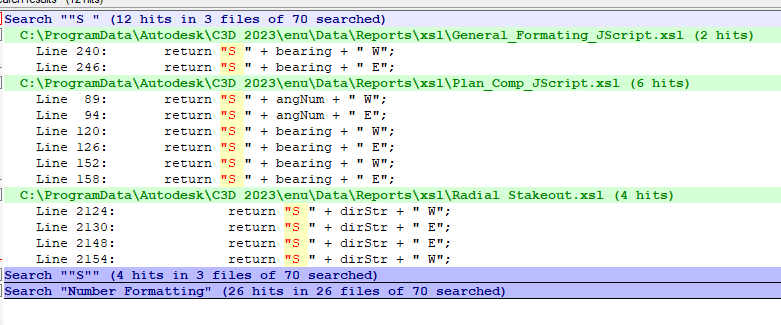
    If you open the xsl files in the report files (C:\ProgramData\Autodesk\C3D 2023\enu\Data\Reports\xsl\) you should be able to find the locations where the directions are being formatted. In the image below I've searched for ""S " in Notepad++ and found some of the locations. Go in and change "S " to "S" and that should give you the results you are looking for. Also do this for the locations where "W ", "E ", and "N ".

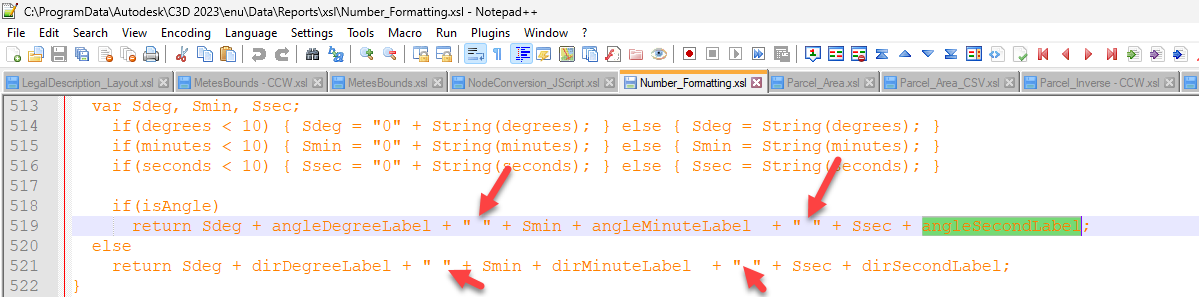
    The dashes in the image below is where the spaces placeholders are being added:

    You would then need to find where the "-" is being turned into spaces by looking where the formatAngleToDMS is called from. 


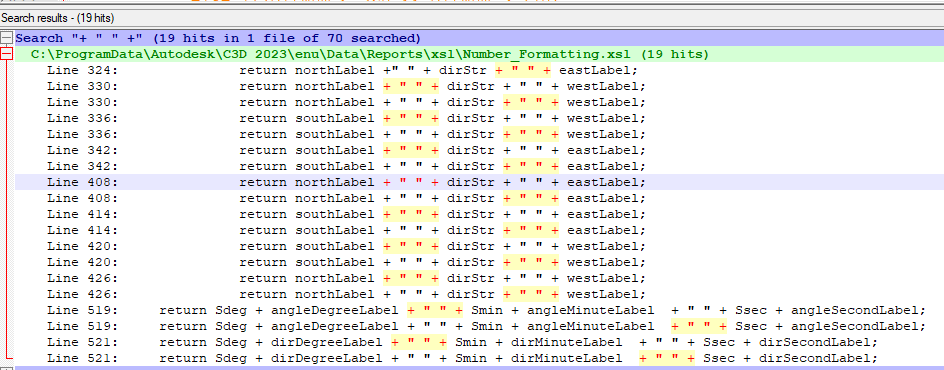
    Searching for "+ " " + " should find the locations. 


    Saturday, August 06, 2022

    Visual Studio Code => Setup Java Maybe?

    These are some random notes. Ignore. 

    This installs wsl from Terminal in Visual Studio Code:

    • sudo apt install wsl
    This sets JAVA_HOME, but really didn't work. Needed to install java on WSL2:
    • export JAVA_HOME="/mnt/c/DeleteMe/java/java-1.8.0-openjdk-1.8.0.342-1.b07.redhat.windows.x86_64"
    This installs java jdk:
    • sudo apt install default-jdk
    WSL commands were not working as expected. The WSL needed to be updated to get everything setup correctly. I, unfortunately, didn't write down the command. 

    To view a file in Visual Studio Code, just click on the file in Explorer. It's possible to do in Terminal, but I think I'm a GUI person at this point.
        

    Rebuild in the Java Projects, not the files.
        
    For the code, need to rebuild and clear any errors.


    Monday, March 21, 2022

    Demo Palette Commands

    Some code to help in doing my demos. It goes into the Tool Palette as commands and then I can press the command in the Tool Palette to run the command. 

    This does a Save As file: 

    ^C^C(vla-saveas (vla-get-ActiveDocument (vlax-get-Acad-Object)) "C:/Civil 3D Projects/DFWBIUG_Test_A/Sewer/Phase 2/A_Phase1_Sewer_B_Street_Start.dwg");

    Note:

    • The backslashes in the drawing path are forward slashes. 
    • The ^C^C clears the command line. 

    This opens a file:

    ^C^C(LM:open "C:/Civil 3D Projects/DFWBIUG_Test_C/SampleCreateDS.dwg"); 

    The tool palettes also work as an agenda so I can remind myself what I'm doing next.

    The LM:open is modified from Lee Mac: http://lee-mac.com/open.html with totally different code.

    Monday, May 17, 2021

    SHOWLAYERUSAGE

     There appears to be a setting in AutoCAD that will prevent layers from indicating if objects are on them or not. The system variable is SHOWLAYERUSAGE. A value of 0 turns of the ability of AutoCAD to show if objects are on a layer. A value of 1 enables the ability of AutoCAD to indicate if a layer is in use. 

    It appears this variable was created to improve drawing performance. In Civil 3D the value defaults to 0, or OFF. So if you want to see layer usage then you will want to set the value to 1. Not sure how badly this affects drawing performance. It sure would be nice if Autodesk created another thread to do the work instead of having it on the UI thread that makes the drawing performance go down. 

    I guess if you hear an Autodesk developer say they can't think of a reason why multithreading is necessary, you can point them to this workaround they did instead of utilizing multithreading.

    LinkWithin

    Blog Widget by LinkWithin

    Ad